From triangle mesh to real CAD solid
Mesh2Solid recognises the geometry in a triangle mesh (STL, 3MF or OBJ) – bores, fillets, chamfers, threads – and rebuilds it as true planes, cylinders, cones, tori and spheres. You get a STEP file you can edit in Fusion 360, SolidWorks, FreeCAD or any other CAD. It runs in your browser; your files never leave your computer unless you open them in Fusion.
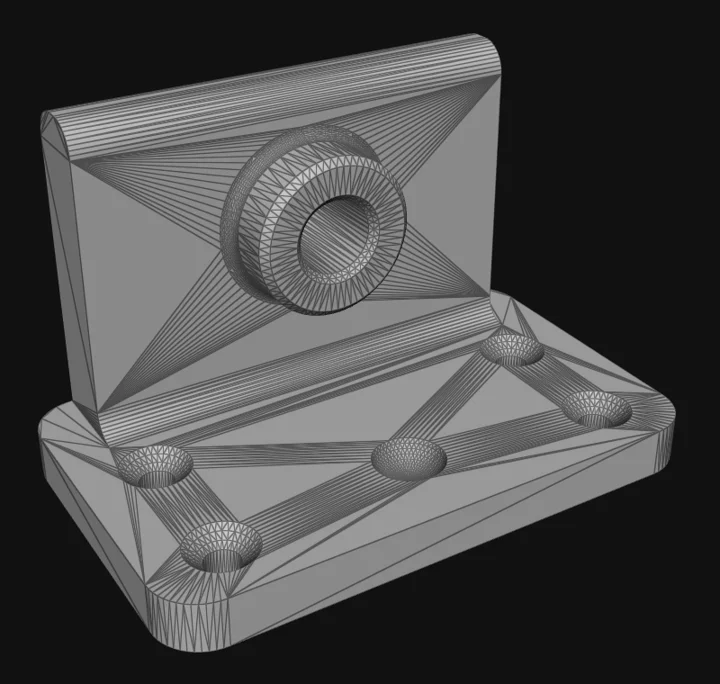
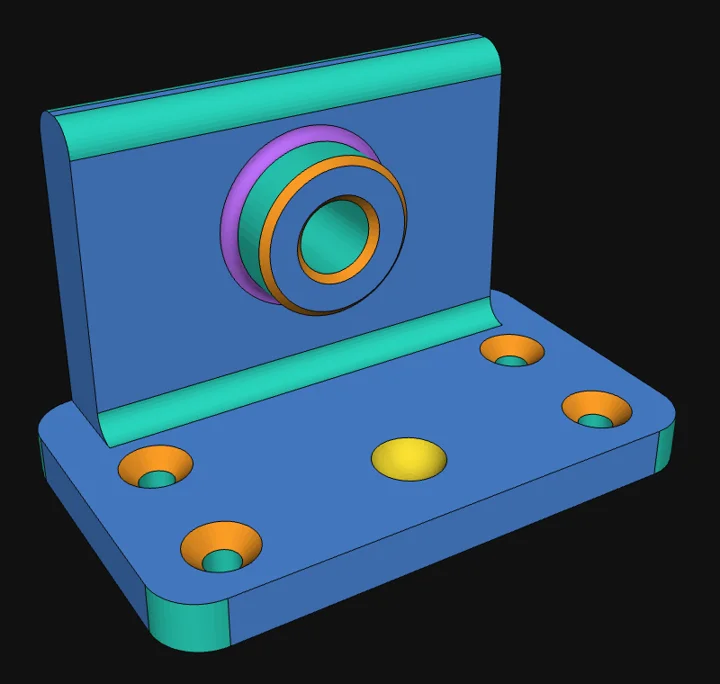
How it works
- Open an STL, 3MF or OBJ file, or drop it here.
- Analyse: Mesh2Solid finds planes, cylinders, cones, tori, spheres, threads and freeform faces and colours them in the view.
- Optional, with Pro: rework faces, set holes to thread sizes and check the deviation – see below.
- Download the STEP file and edit it in your CAD: change hole diameters, move faces, add fillets.
Free and Pro
- Free for hobby projects (private, non-commercial): recognition of all shapes and STEP export.
- Pro – €12 / $12 per year, required for any commercial use:
- Convert faces by hand, merge them into their neighbour, extend them or have them recognised again
- Edit the mesh: pick triangle edges, extend them straight through the triangles step by step and cut faces along them – cut off stray bits, trace edges the analysis missed
- Change hole diameters, M2–M16: clearance, tap drill, screw straight into plastic – or cut a real thread
- Show the deviation mesh → STEP, per face as well, and print it as an inspection report
- Fit faces to the original mesh
- Repair open meshes (close gaps)
- Check the STEP for validity up front and fix check findings
- Find and fill enclosed cavities
- Pick, rename and export single bodies
- Open the result directly in Fusion
- You support an independent developer. Thank you!
FAQ
- How do I convert STL to STEP?
- Open the STL here, click "Analyse mesh", then "Download STEP". Unlike a plain conversion, the STEP file contains real cylinders and planes instead of thousands of triangles.
- Can I edit the result in Fusion 360?
- Yes. Bores become true cylinders, so you can change their diameter, move faces or add fillets. With Pro, "Open in Fusion" sends the file straight to Fusion.
- Are my files uploaded?
- No. Mesh2Solid runs entirely in your browser; your meshes are processed on your own computer.
- Which meshes work best?
- Meshes exported from CAD, such as 3D-printing models from Printables, Thingiverse or MakerWorld. Scans and sculpted models mostly end up as freeform faces.
- Is Mesh2Solid free?
- For private, non-commercial use, yes. Commercial use needs a Pro licence.
Ansicht
Werkzeuge
Werkzeuge
mm
Fläche anklicken: umwandeln, Bohrungs-Ø ändern · Körper anhaken: einzeln exportieren · Rechtsklick: umbenennen
Alle Pro-Funktionen ansehen ›gültigProblem
0